
Exness Trade App – Trade Forex, Gold & Crypto on Mobile
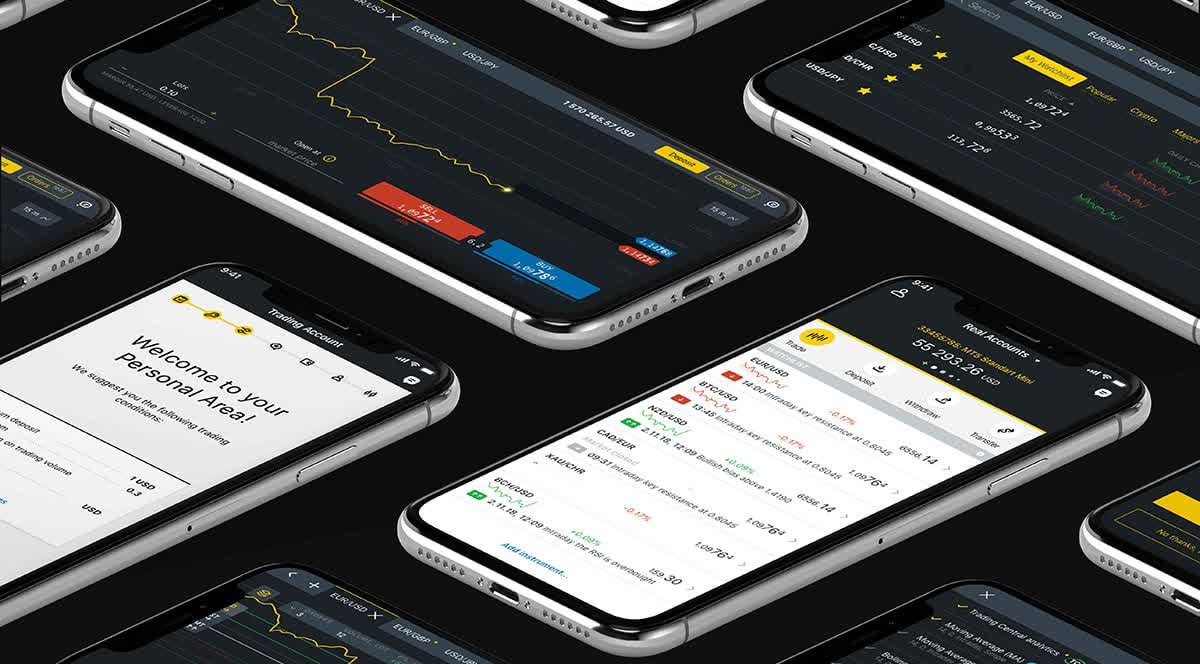
Exness Trade App is a powerful mobile trading platform that enables traders to access global financial markets anytime, anywhere. With real-time pricing, advanced charting tools, and fast order execution, the app allows seamless trading on forex, commodities, indices, stocks, and cryptocurrencies. Designed for both beginners and professional traders, the Exness Trade App provides a secure, user-friendly interface on iOS and Android, making it easy to manage accounts, monitor market conditions, and execute trades on the go.
To get started smoothly, you may also want to check:
🔗 How to Open an Exness Account
🔗 Exness Account Types
Contents
- Exness Trade App | Installation guide
- Exness Trade App | Account verification
- Exness Trade App | Creating trading accounts
- Exness Trade App | Trading guide
- Exness Trade app | Deposits
- Exness Trade app | Withdrawals
- Exness Trade app | Trading features
- Conclusion
Exness Trade App | Installation guide
You can easily download the Exness Trade app on both Android and iOS devices through the Google Play Store and Apple App Store. After installing the app, you can quickly create a new Exness account or sign in using your existing login details.
However, in some regions, the Exness Trade app may not be available on the Google Play Store. In this case, you can still install it manually using the official Exness APK file.
How to Install Exness Trade via APK (Android)
Follow these steps to install the app using an APK file:
- Download the official Exness Trade APK file here.
- When prompted, confirm and accept the download on your device.
- Once downloaded, open and install the APK file.
- After installation, launch the Exness Trade app.
- Choose Register to create a new account or Sign In if you already have an Exness account.
Exness Trade can be manually updated by launching the app or downloading the .APK again.
After installation, you can Register or Sign In.
🔗 Exness Login Guide
For iOS devices, Exness Trade only supports iOS v15 or later.
Exness Trade App | Account verification
It is highly recommended to fully verify your Exness account immediately after registration. Account verification helps secure your profile, ensures only you can access your funds, and removes initial deposit and withdrawal limits.
The verification process, document requirements, and account limitations may differ depending on your registered region.
Steps to Complete Exness Account Verification
Follow the steps below to successfully verify your account:
1. Verify Your Email Address
- Enter your email address in your Exness Personal Area.
- Request a verification code.
- A 6-digit confirmation code will be sent to your email.
- Enter the code to continue to the next step.
2. Enter Your Personal Information
Provide accurate details that match your verification documents, including:
- Full name (first and last name)
- Date of birth
- Residential address
- Gender
3. Verify Your Phone Number
- Enter your mobile phone number.
- Choose to receive a verification code via SMS or phone call.
- Enter the 6-digit code to complete phone verification.
4. Complete Your Economic Profile
Answer required questions about your:
- Source of income
- Employment or industry
- Trading experience
- Financial information
- This information helps Exness comply with regulatory requirements.
5. Verify Your Identity (POI) and Address (POA)
If required for your region:
- Select your country of issue and document type for Proof of Identity (POI).
- Upload a valid ID following Exness document guidelines.
- Then upload your Proof of Address (POA), ensure it matches the requirements and shows your correct residential address.
Exness Trade App | Creating trading accounts
You can easily create additional Exness trading accounts directly from the Exness Trade app. Follow the steps below to set up a new Demo or Real account:
Steps to Create a New Exness Trading Account
- Open the Exness Trade app and go to the Accounts tab.
- Tap the dropdown menu at the top.
- Tap the ( + ) icon and choose whether you want to open a Demo account or a Real account.
- Select your preferred account type, then tap Continue.
- The system selects MT5 by default. If you want an MT4 account:
- Tap the gear icon,
- Choose MT4, and tap Confirm.
- Choose your account currency, enter an account nickname, and set your leverage and execution type (execution type applies only to Pro accounts). Tap Continue.
- Create a trading password, ensure it meets the password requirements displayed on the screen. Tap Continue to finalize.
After setting up your new account, proceed to make a deposit and start trading immediately.
For more info on Pro-level trading conditions:
🔗 Exness Professional Accounts
Exness Trade App | Trading guide
Learn the essential steps for opening, closing, and managing orders on your MT5 trading account using the Exness Trade app. To get started, simply launch the Exness Trade app on your mobile device.
Opening an order
- Tap on the Trade tab, then select any trading instrument to expand its chart.
- Tap Sell or Buy to start creating an order.
- Choose your trading mode: either Regular mode or Risk Calculator mode.
- Set the order volume; for pending orders, enable Order settings to display all pending order options.
- Select the order type from the display tab and enter the required values. You can also set Take Profit and Stop Loss directly on the chart.
- Once everything is set, tap Confirm. A notification will appear to confirm that your order has been opened successfully.
From the order form, you can also place an order using the Risk calculator mode:
- To use Risk Calculator mode, select it from the order form menu, then choose Sell or Buy and enter details such as order type (market or pending), risk amount, stop loss, and take profit.
- The system will automatically calculate the appropriate lot size based on your inputs. Tap Confirm to place the order.
The previously used values will be automatically applied if you have used the position size calculator before. If any Risk, Stop Loss, or Volume input is incorrect, the invalid value will be highlighted in red to alert you.
Closing an order
- Close a Full Order
- In the Accounts tab, view all open orders under the Open section.
- Tap the order you want to close and select Close order, or simply swipe left and tap Close.
- Tap Confirm to finalize the closure.
- Partially Close an Order
- Tap the order and go to the Partial close tab.
- Enter the number of lots you want to close and tap Close order.
- Tap Confirm to complete the partial closure.
- Close by Opposite Order
- Tap the order and navigate to the Close by tab.
- Select the opposite order based on price and tap Close order.
- Tap Confirm to proceed.
- A notification will appear once the order is successfully closed.
- Close All Orders for a Specific Instrument
- In the Accounts tab, open orders are listed in the Open section.
- Swipe left on the instrument and tap Close.
- Tap Confirm to close all related orders.
Managing an order
- Modify an Order
- Go to the Accounts page and open the Open or Pending tab.
- Select the order you want to adjust, swipe left, and tap Modify.
- Set your Take Profit (TP) and Stop Loss (SL) using price, pips, money, or a percentage of equity.
- Tap Confirm to save the changes.
- Note: To modify multiple orders at once, all orders must be in the same direction. Otherwise, each order must be modified individually.
- Delete a Pending Order
- In the Accounts tab, open the Pending section to view all pending orders.
- Tap the pending order you want to delete or swipe left.
- Tap Delete order, then tap Confirm.
- The pending order will be successfully removed.
Order information
Order Information Details on Exness Trade
When creating a new order, tap the Order Information icon to view important trading details, including:
- Fees – The charges applied after the order is opened.
- Leverage – The leverage level used for this specific order.
- SWAP – The amount that may be deducted or credited to your account based on overnight positions.
- Pip Value – The value of each pip calculated in your account currency.
- Volume in USD – The order size expressed in US dollars.
- Volume in Units – The total number of contract units for the selected volume.
- Potential Stop Out – The estimated stop-out price if all open positions for the same instrument and direction are considered.
The Exness Trade app makes opening, closing, and managing MT5 orders simple and efficient. With clear tools for execution, risk control, and order management, the Exness Trade app helps you trade faster, smarter, and with greater confidence.
Exness Trade app | Deposits
How to Deposit Using the Exness Trade App
- Open the Accounts tab: Tap Deposit to start the process.
- Choose your payment option: Select the payment type, then choose a supported payment method.
- Enter your deposit amount: Type in the amount you want to add and tap Continue.
- Review your transaction: Check all details carefully, then tap Confirm to proceed.
- Complete the payment: You will be redirected to the provider’s page to finalize the transaction.
- Wait for the funds to arrive: Your deposit will appear in your trading account once the payment method’s processing time is completed.
If your deposit does not appear within the expected processing time, open the History tab in the Exness Trade app. Locate the transaction and tap Get Support to submit a support ticket. Your issue will be reviewed and resolved by the Exness support team.
Exness Trade app | Withdrawals
How to Withdraw on the Exness Trade App
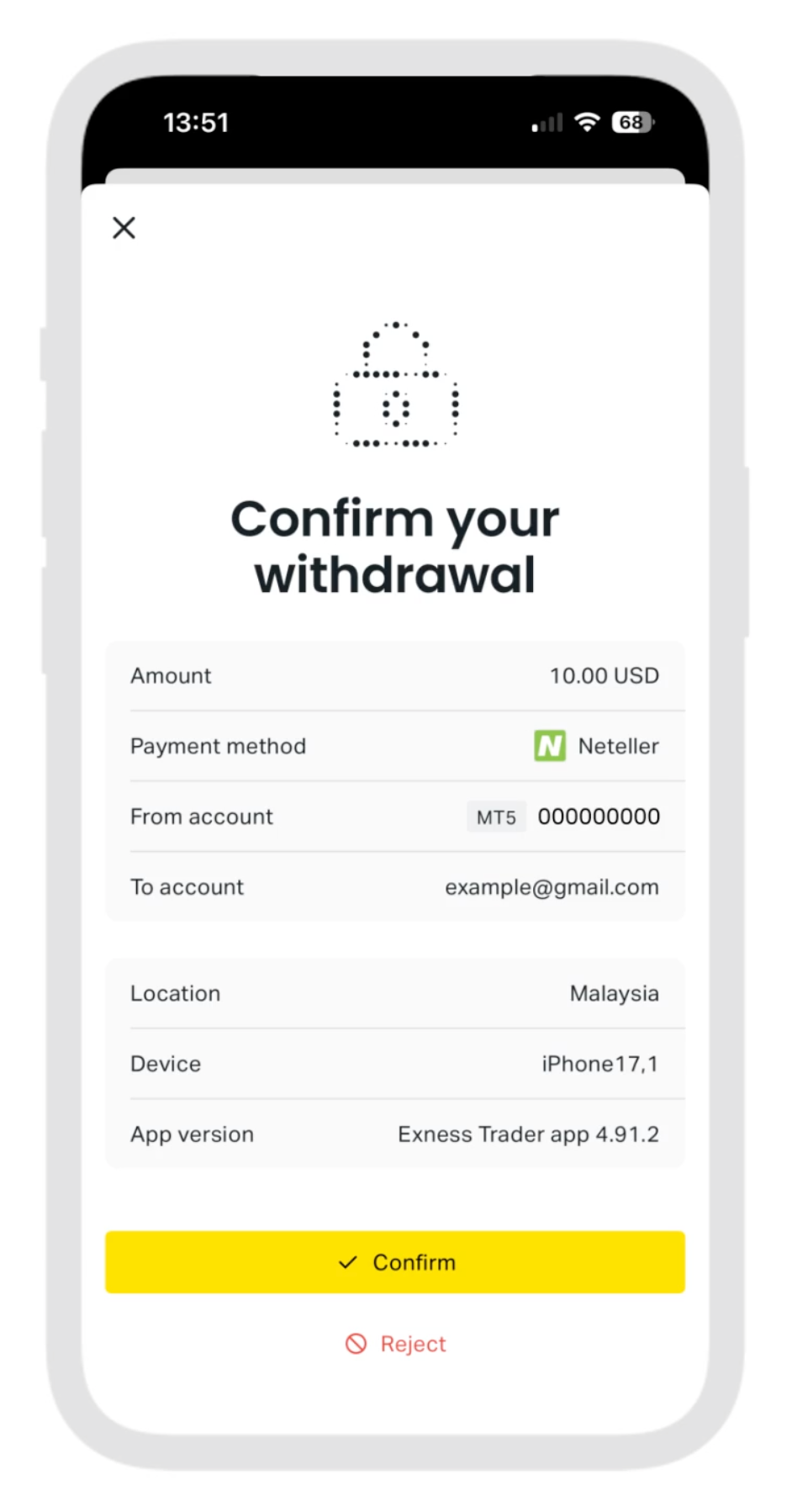
Withdrawing funds on the Exness Trade app is simple and secure. Follow these steps:
- Open the Accounts tab: Tap Withdraw to start the withdrawal process.
- Choose a payment method: Select one of the available payment methods supported by Exness Trade.
- Enter the withdrawal amount: Type in the amount you want to withdraw and tap Continue.
- Review and confirm: Check the transaction summary carefully, then tap Confirm.
- Validate your withdrawal: Confirm the withdrawal using the security verification method linked to your Personal Area (e.g., SMS, email, or authenticator).
- Complete the transaction: You will be redirected to the payment provider’s page to finalize the process.
- Check transaction status: Once completed, you can view the withdrawal details and current status in your Exness Trade account.
Withdrawals on Exness Trade must follow the payment method priority rules to ensure fast and seamless processing.
Exness Trade app | Trading features
Once you know how to trade with Exness Trade, you may wonder what other powerful features the platform provides to enhance your trading experience. In this article, we take a closer look at the key trading tools and functionalities available on the Exness Trade app, helping you understand how each feature can support smarter, faster, and more efficient trading.
Accounts
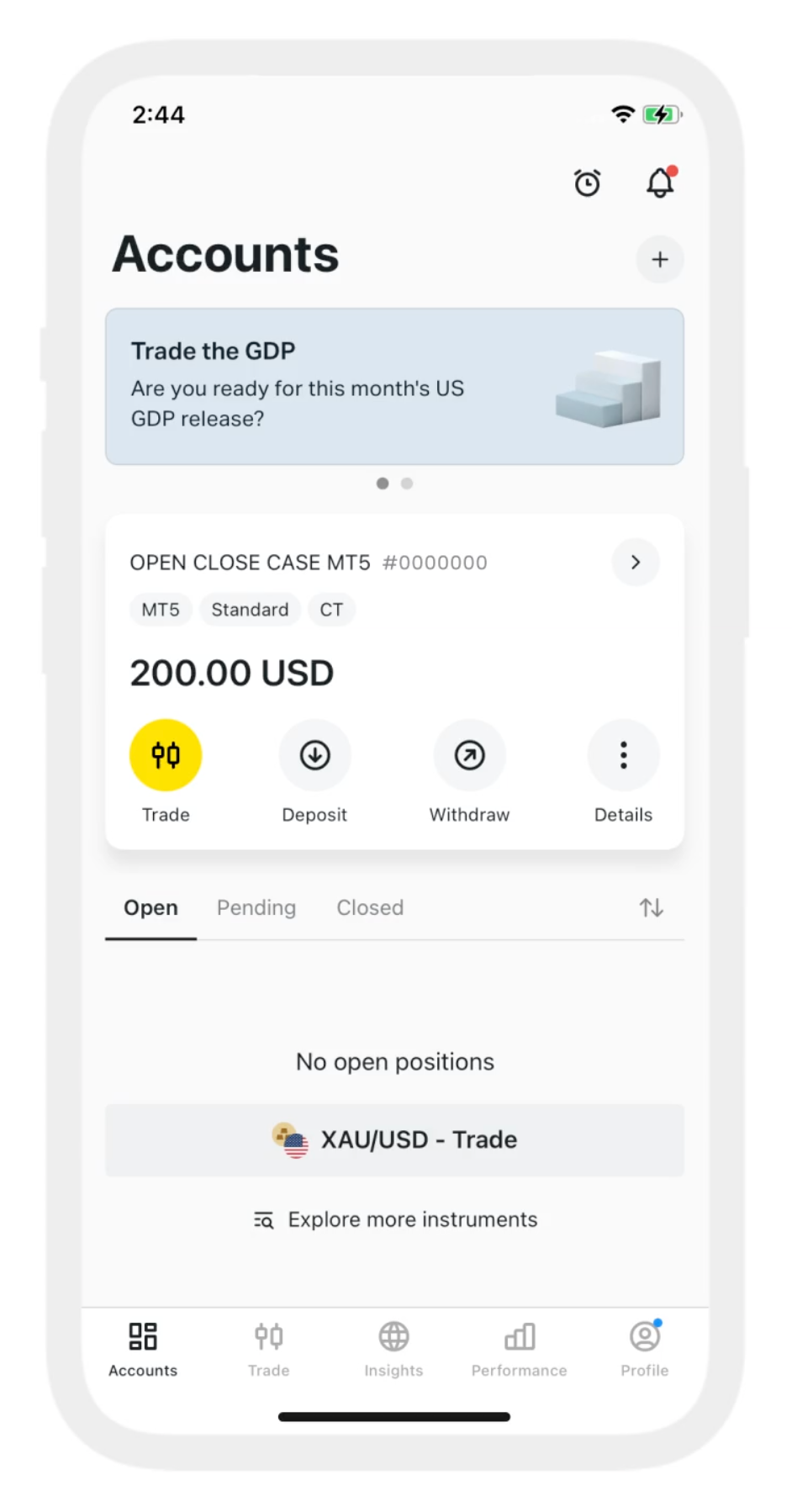
After logging into the Exness Trade app, you will automatically land on the Accounts tab, where all trading accounts linked to your Personal Area (PA) are conveniently displayed. No matter which section you navigate to, a compact account card remains visible, giving you instant access to key functions like making deposits, processing withdrawals, checking available funds, updating account settings, or switching between your accounts with ease.
The interface of the Exness Trade app may vary slightly between iOS and Android devices, so some features or layouts might appear different depending on the operating system you are using.
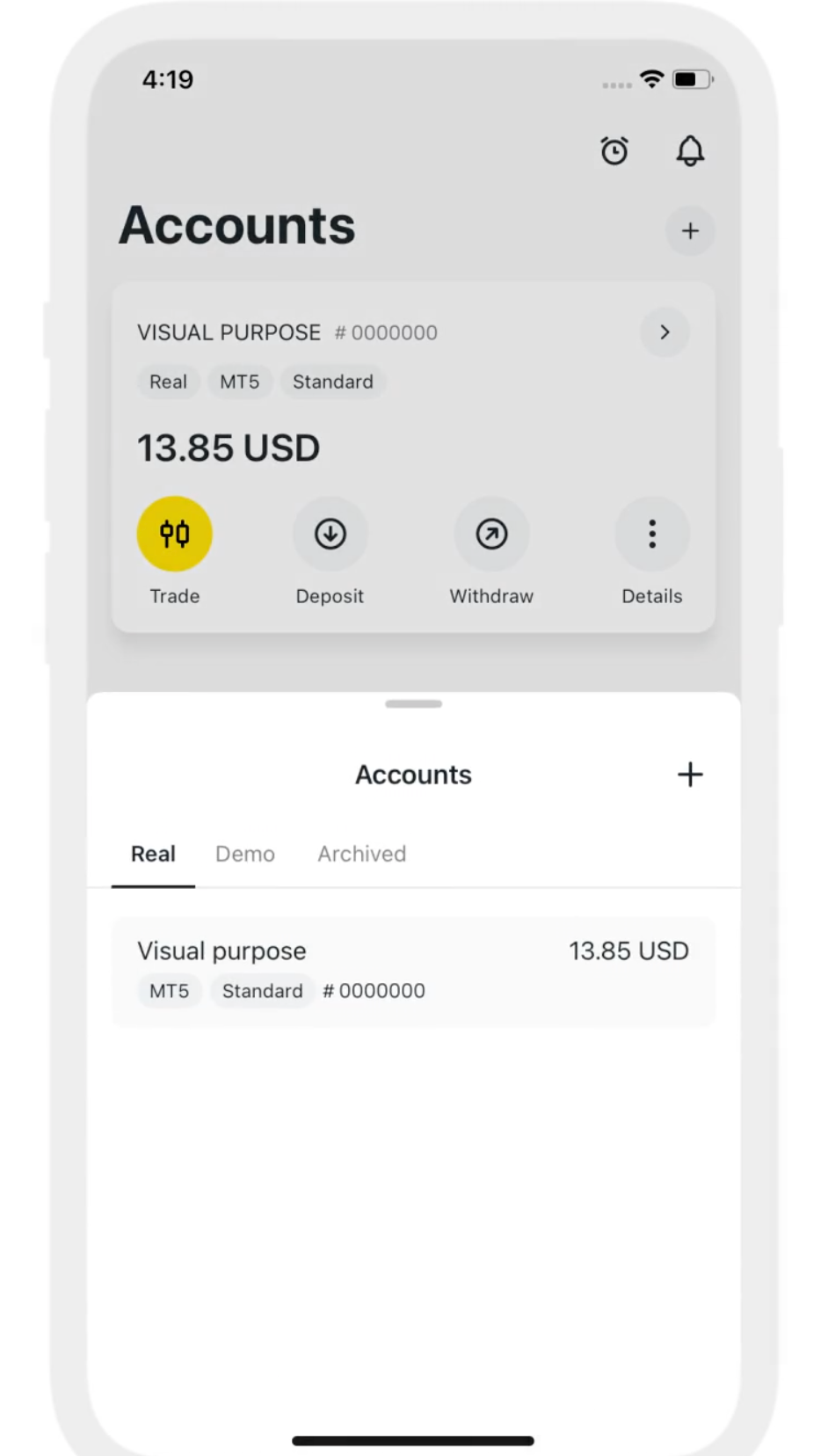
To switch between your active trading accounts, simply tap the “>” icon to open the account list and choose from your available real or demo accounts. Your archived accounts are also accessible from this section. If you need to add another trading account, just tap the “+” icon.
By selecting Details, you can view comprehensive information about the chosen trading account, organized into two sections: Funds and Settings.
In the Funds tab, you’ll find a detailed breakdown of each data point, explained in the table below:
| Information | Description |
| Balance | The total value of funds in the trading account (open orders excluded). |
| Equity | The total value of the trading account, including open orders. |
| Profit/Loss | The total profit or loss of open orders on the trading account is shown in green or red. |
| Margin | The amount held to pay for open orders on this trading account. |
| Free margin | The amount not held as margin on this trading account. |
| Margin level | A percentage value of the trading account based on its equity versus margin. |
| Leverage | The ratio of equity to capital on the trading account. |
For each trading account, you can easily access deposit, withdrawal, and transfer options, as well as review the full transaction history. Simply tap the corresponding icon to perform any action.
In the Settings section, you’ll find key account information, including the account type, account number, nickname, spread, leverage, and login credentials for MT4 and/or MT5. You can also update your trading password and view the trading log directly from this menu.
Order tabs
The Accounts section includes three dedicated tabs—Open, Pending, and Closed—allowing you to easily monitor all orders associated with the selected trading account.
By default, your order history displays activity from the past 30 days. To view older data, tap Show previous day on iOS or Show more on Android. Additional history will load in batches until reaching the account’s creation date.
Older order records are stored locally on your device and will automatically appear each time you open the app, unless Exness Trade has been reinstalled.
You can also organize your order history by open time, profit/loss, trading instrument, or volume by tapping the sorting icon.
Closed tab information
When an order is closed for any reason, it will appear in the Closed tab. By tapping on any entry, you can expand it to view detailed information about that specific order, including key trading data and execution details.
| Information | Description |
| Open time | The time the order was opened. |
| Close time | The time the order was closed. |
| Closed by | The method of closure for the order which can include stop out, stop loss, take profit, and user (when manually closed). |
| Equity | The value of your trading account’s equity at the time of stop out (shown only when closed by stop out). |
| Margin level | The margin level of your trading account’s equity at the time of stop out (shown only when closed by stop out). |
| Swap | The value of swap for the order. |
| Commission | The amount of commission paid for the order. |
| Stop loss | The value set as the order’s stop loss. |
| Take profit | The value set as the order’s take profit. |
Trade
The Trade tab provides access to the full list of available trading instruments, along with the trading terminal and interactive charts. This is the primary area for opening trades on the Exness Trade app—simply tap on any instrument to view its chart and start trading.
Landscape mode
The Exness Trade app allows you to place orders in landscape mode. To enable this, adjust your device settings to allow screen rotation for horizontal or vertical orientation. Trading can be conducted in three modes: regular, risk calculator, and one-click trading.
In regular and risk calculator modes, simply tap the Buy or Sell buttons to open the order form, then tap Confirm to execute the trade.
To use one-click trading, activate the mode by selecting One-Click and tapping Accept. You can then open trades instantly by tapping Buy or Sell, and adjust the number of lots using the Lots field.
Market watch
The list of trading instruments in Exness Trade is called the Market Watch, which organizes instruments into categories such as Favorites, Most Traded, Top Movers, Majors, Metals, Crypto, Energies, Stocks, Indices, Exotics, and Minors. To view the full selection of available trading instruments, simply open the All category.
The Favorites tab is a customizable watchlist where you can keep track of your preferred instruments. To add an instrument to Favorites, swipe left and tap the star icon; instruments can be removed in the same way.
The Most Traded category displays instruments based on the current volume of orders, while the Top Movers section highlights instruments experiencing the largest price changes.
Sorting instruments
In addition to the Most Traded and Top Movers categories, you can sort trading instruments by tapping the Sort by button and selecting from the following options:
- Popularity: Displays instruments that are traded most frequently.
- Name: Arranges instruments alphabetically from A to Z.
- Daily Change: Highlights instruments with the highest or lowest percentage change since orders were opened.
Each listed instrument shows the number of open orders and the total profit or loss for those orders. To close all orders for a specific instrument, simply swipe left on the instrument and tap Close All.
Searching instruments
To quickly locate a specific trading instrument in Exness Trade, tap the magnifying glass icon and enter the instrument’s code. This allows you to access the desired instrument instantly without scrolling through the full list.
Instrument charts
Tapping any trading instrument in the Market Watch list opens its trading chart. Only one chart can be displayed at a time. To switch charts, minimize the active chart and select another instrument, or use the chart’s dropdown menu to change the active chart.
If you have open or pending orders for the selected instrument, these will be displayed both above the chart and directly on it. Tap the Open or Pending buttons to view the list of orders. To close all orders at once, click the red X icon.
At the top of the chart, you can access several essential tools by tapping their icons:
- Alerts: The clock icon allows you to set up a new alert for the instrument. Tap New alert to configure its parameters.
- Calculator: Tap the calculator icon to calculate trading conditions for an order.
- Fullscreen: The fullscreen icon expands the chart for a larger view.
- Settings: The gear icon opens chart settings, where you can customize what appears on the chart, including trading signals, HMR periods, price alerts, position profit/loss, and the economic calendar.
You can also adjust chart type, colors, and trade mode for the selected instrument.
The chart interface includes three main tabs:
- Chart: Displays the trading terminal with its full range of features for technical analysis and order management.
- Analytics: Provides a detailed performance overview of the instrument over selected time periods, including trading signals, upcoming events, and the latest economic news.
- Specifications: Lists trading specifications for the instrument, such as market hours, contract details, and other essential information.
How to set an alert for a trading instrument
To set a custom push notification on your device, tap the clock icon either in the chart window or at the top-right corner of the Trade tab. Then, tap + Add New Alert to create a personalized alert. If you access this from the Trade tab, make sure a trading instrument is selected. You can configure the alert to trigger when a specific bid or ask price is reached, and once all details are set, tap Confirm.
You can monitor active price alerts in the Active tab, while executed or expired alerts can be found under History. Note that if a price alert is deleted manually, it will not appear in the History tab.
Traders should use Exness trading platforms and apps to monitor the market and not rely solely on this feature. Exness is not responsible for any losses caused by the feature’s failure or unavailability.
Trading chart features and tools
The Exness trading chart serves as the default terminal whenever you open a trading instrument. It provides a range of tools to customize the chart type—line, bars, or candlestick—set timeframes, and add technical indicators to enhance your analysis.
Key indicators available include:
- HMR (High Margin Requirement): Shows the current or upcoming high margin period for the instrument.
- Moving Average (MA): Calculates the average price change over a specific period.
- Bollinger Bands: Defines trendlines to assist in technical analysis.
- Parabolic SAR: Identifies trend direction and potential price reversals.
Chart Timeframes:
- Android: 1 min, 5 mins, 15 mins, 30 mins, 1 hour, 4 hours, 1 day
- iOS: 1 min, 5 mins, 15 mins, 30 mins, 1 hour, 4 hours, 1 day, 1 week, 1 month
To manage indicators, tap the indicators icon, select your desired indicator, and set its parameters. To remove an indicator, select it and tap Clear, or use Clear all to remove multiple indicators at once. You can also hide indicators by tapping Hide all. For additional options, switch the active chart to a TradingView chart.
Through the settings icon, you can customize what appears on the chart, including trading signals, HMR periods, price alerts, position profit/loss, and display options for positions, pending orders, or closed orders. Under chart preferences, you can set the default trading terminal (Exness or TradingView), adjust chart colors, and choose the default order mode—regular, one-click, or risk calculator.
About the TradingView chart
The TradingView chart is an alternative charting option available in the Exness Trade app, providing advanced tools and functionalities for technical analysis. With TradingView charts, you can access:
- 100+ Indicators
- Drawing tools
- Customizable color settings
- Volume-Weighted Average Price (VWAP)
- Volume-Weighted Moving Average (VWMA)
- Zig Zag indicator
- To activate the TradingView chart:
- Tap the gear icon on any chart and go to Chart Preferences.
- Select Chart and choose TradingView.
- To adjust TradingView chart settings:
- Tap the gear icon above the yellow Auto button within the chart.
- For more options, tap More Settings.
- To save a chart layout for a specific instrument:
- Tap the Save button.
- Enter a name for the layout and tap Save. The saved layout will appear at the top of the chart.
- To manage your chart layouts:
- Tap Layout, then Load Layout.
- Select a layout to load, and you can also copy or delete it as needed.
Risk calculator order form
The Risk Calculator order form in Exness Trade helps traders determine the optimal position size when opening a new order. It calculates the potential trade volume based on two main parameters:
- Risk: The amount of funds a trader is willing to risk, expressed in USD or as a percentage of equity.
- Stop Loss: Specified in pips or price.
The calculator uses the current market price by default, which can also be entered manually to calculate the volume for pending orders. If an incorrect risk, stop loss, or volume value is entered, it will be highlighted in red.
To apply the calculated volume to a new order, tap Set Volume and Stop Loss. If you do not wish to use the calculated values, simply tap Cancel.
Insights
The Insights tab provides comprehensive information for traders, including the latest financial news, market trends, and key updates to help make informed trading decisions.
Top movers
The Top Movers section is the first part of the Markets tab, highlighting the top 10 trading instruments with the most significant price changes. Tap Show More to explore additional instruments across different categories and timeframes.
Trading Signals
Access valuable trading signals from Trading Central within the Exness Trade app, providing insights into potential market trends. Each signal includes an overview of a trading instrument and its current trend. Tap on a card to read the full report, and you can also open a trade directly from the signal.
Upcoming events (Economic Calendar)
Stay informed about major upcoming financial events that may impact specific trading instruments with FXStreet News in the Exness Trade app. Each event’s volatility is indicated using yellow and red bars, with three red bars signaling high importance. Tap Show More to access the full Economic Calendar from FXStreet News.
You can also filter events by country and volatility by using the available filter buttons, helping you focus on the events most relevant to your trading strategy.
Top news
The Exness Trade app provides up-to-date international financial news directly within the platform. Tap any news headline to read the full article, and for certain articles, you can tap Buy or Sell to open a trade for the related instrument.
By tapping Show More, you can view additional financial news focused on your favorite instruments in a dedicated tab, keeping you informed and ready to act on market developments.
Expert content
Access daily commentaries and in-depth quarterly insights from our expert financial strategists directly within the Exness Trade app. Simply tap on any entry to open and read the full document.
Performance
The Performance tab offers a complete overview of your trading performance, allowing you to review results for individual accounts or all accounts collectively. It also displays any dividends earned.
Note that the Performance tab provides trading statistics exclusively for real trading accounts, ensuring accurate insights into your actual trading activity.
The Performance tab includes interactive charts that provide detailed insights into your trading activity, covering the following criteria:
- Profit/Loss: Displays the total profit or loss of your trading account for all closed orders.
- Equity: Shows your account balance combined with floating profit/loss from open orders, calculated as:
- Equity = Balance ± Floating Profit/Loss + Swaps
- Total Orders: Tracks the number of filled or closed orders within a selected period, including the total number of orders, percentage change, profitable orders, and unprofitable orders.
- Trading Volume: Represents the total value of all filled or closed orders during the selected timeframe.
All figures for profit/loss, equity, and trading volume are presented in USD, with total orders as the exception. Most data is displayed in bar charts, while equity is visualized using a line chart for easy tracking of trends over time.
By default, the Performance tab displays data for all real trading accounts over the past seven days. You can filter the view to show a single account or all accounts over different time periods, including week, month, quarter, or year.
| Data set | Indicators |
| Profit/Loss | Net profit shows the change in profit of orders compared to the previous period of the same time range.Loss shows the total negative profit of orders for the selected time range.Profit shows the total positive profit of orders for a selected time range. |
| Equity change | Equity change shows the change in equity from the start to the present.It shows the current Equity. |
| Total orders | Total orders show the change in the total number of orders created within a time range compared to the previous period of the same length.Profitable orders indicate profit-making orders for a selected time range.Non-profitable orders indicate non-profitable orders for a selected time range. |
| Trading volume | Trading volume in % shows the trading volume of orders for a selected time range compared to the previous period of the same time range. |
Time period details
In the Performance tab, each period of time is represented by a single bar on the chart. The meaning of each bar will adjust according to the selected time period, as outlined in the table below:
| Time range | Bar representation (excluding equity) |
| Last 7 days | Each bar represents a day |
| Last 30 days | Each bar represents a day |
| Last 90 days | Each bar represents a week |
| Last 365 days | Each bar represents a month |
Profile (settings)
The Profile tab provides key information and settings for both your Exness account and the Exness Trade app. It includes important preferences and functions, so it’s highly recommended that users familiarize themselves with this section to manage their account effectively.
Settings
Exness Trade settings can be accessed by tapping the gear icon in the top-right corner of the Profile tab. This section offers a wide range of options, organized into Preferences and Security settings:
Preferences:
- Notifications: Customize push notifications for various trading events.
- Language: Select the language used throughout the Exness Trade app.
- Appearance: Choose between light, dark, or device-dependent themes.
Security:
- Device & Account Security: Manage security types for your Exness account. Only valid options are shown, and you can add new phone numbers as a security method.
- Change Passcode: Set a 6-digit passcode required for logging in and unlocking Exness Trade.
- Skip PIN: Define a passcode request interval from 10 minutes to 12 hours, or select Always Ask to require the passcode whenever returning from background or relaunching the app.
- Sign-in with Biometrics: Enable or disable biometric authentication to unlock the app.
- Hide Balances with a Flip Gesture: Instantly hide sensitive account information by flipping your device face down and back up. Toggle this feature on or off in the settings menu.
- Secure My Account: Log out of all devices except the current one for enhanced account security.
- Delete Account: Provides instructions and information on how to delete your Exness account.
Verification Status
Your Exness account verification status is clearly displayed in the Profile tab. Completing account verification is crucial to unlock all trading features and benefits. Simply tap Complete Verification to start the process and follow the steps to verify your identity and documents. Verified accounts enjoy enhanced account security, higher deposit and withdrawal limits, and access to advanced trading services.
Account Benefits
The Benefits section lists all your account-specific trading advantages, including:
- Swap-Free Accounts: Trade without paying overnight swap fees.
- Negative Balance Protection: Prevents your account from going into a negative balance.
- Exness Premier Program Membership: If you are part of this program, it will be indicated here, giving access to exclusive trading conditions and services.
This section ensures you are always aware of the features and protections available to your account.
Referral Program
The Profile tab also tracks your partner rewards and the total number of referrals credited to your partner link. Tapping this section opens additional options:
- Share the Link: Copy your unique partner link to share with others.
- Withdrawal: Withdraw your earned partner rewards directly to your trading account.
- Transfer: Move partner rewards to any of your trading accounts.
- Go to Partner Personal Area: Access your Partner dashboard for more detailed information.
Copy Trading
Exness Trade provides direct access to the Copy Trading platform, enabling two types of users:
- Professional Traders: Create and manage a trading strategy to share with investors.
- Investors: Browse available strategies and invest in professional traders’ strategies.
Tapping For Investors redirects you to the Copy Trading app installed on your device, where you can monitor performance, set investment limits, and track returns.
Support and Assistance
The Profile tab offers a comprehensive support hub to resolve any issues quickly:
- Support Hub: Search FAQs and find answers to common trading questions.
- Open a Ticket: Submit detailed queries or report issues directly to Exness support.
- LiveChat: Connect instantly with an Exness Assistant for real-time help.
- Suggest a Feature: Submit ideas for new features or improvements to Exness.
This ensures you have full support at every stage of your trading journey.
Legal Documents
Access all important legal and compliance documents within the app:
- Client Agreement
- General Business Terms
- Partnership Agreement
- Complaints Procedure for Clients
- Risk Disclosure
- Anti-Money Laundering Policy
- Privacy Agreement
Having these accessible documents ensures transparency and provides essential legal guidance for all traders.
App Features and Utilities
The Profile tab also includes various additional features to enhance your experience:
- Rate the App: Provide feedback to help improve the Exness Trade app.
- Update the App: Download the latest version of Exness Trade, including .APK file) updates for Android devices.
- Log Out: Securely sign out from your account to protect your trading information.
The Profile tab is more than just account settings—it’s your central dashboard for verification, benefits, partner programs, copy trading, support, legal documentation, and app management. Familiarizing yourself with this tab ensures you can fully leverage all features of Exness Trade while maintaining account security and efficiency.
Conclusion
The Exness Trade app is a comprehensive mobile trading solution designed for traders of all levels, offering seamless access to forex, commodities, indices, stocks, and cryptocurrencies. With features like real-time pricing, advanced charting tools, Risk Calculator, TradingView integration, and one-click trading, the app ensures fast, precise, and efficient order execution on both iOS and Android devices.
Through the Accounts, Trade, Insights, Performance, and Profile tabs, traders can easily manage their accounts, monitor market trends, access financial news, execute trades, track performance, and utilize Copy Trading and referral programs. The app also provides robust security measures, account verification, and support features to secure funds and deliver a reliable trading experience.
Whether you are a beginner seeking a user-friendly interface or a professional trader requiring advanced tools, Exness Trade empowers you to trade smarter, stay informed, and manage your investments anytime, anywhere.
Download the Exness Trade app today to start trading confidently and unlock the full potential of mobile trading.